Start simple: use PLA, your printer maker's standard profile, and a small model with a flat base. Aim for one successful print before changing settings.
Filament 3D printing builds an object one thin layer at a time. A motor feeds plastic filament into a heated nozzle, and the printer lays it down along a path. This process is often called FDM or FFF. The useful part is that the same basic workflow applies to a tiny cable clip or a much larger organizer.
This guide covers filament printers. Resin printers use a different process and need a different workflow for material handling, washing, and curing.
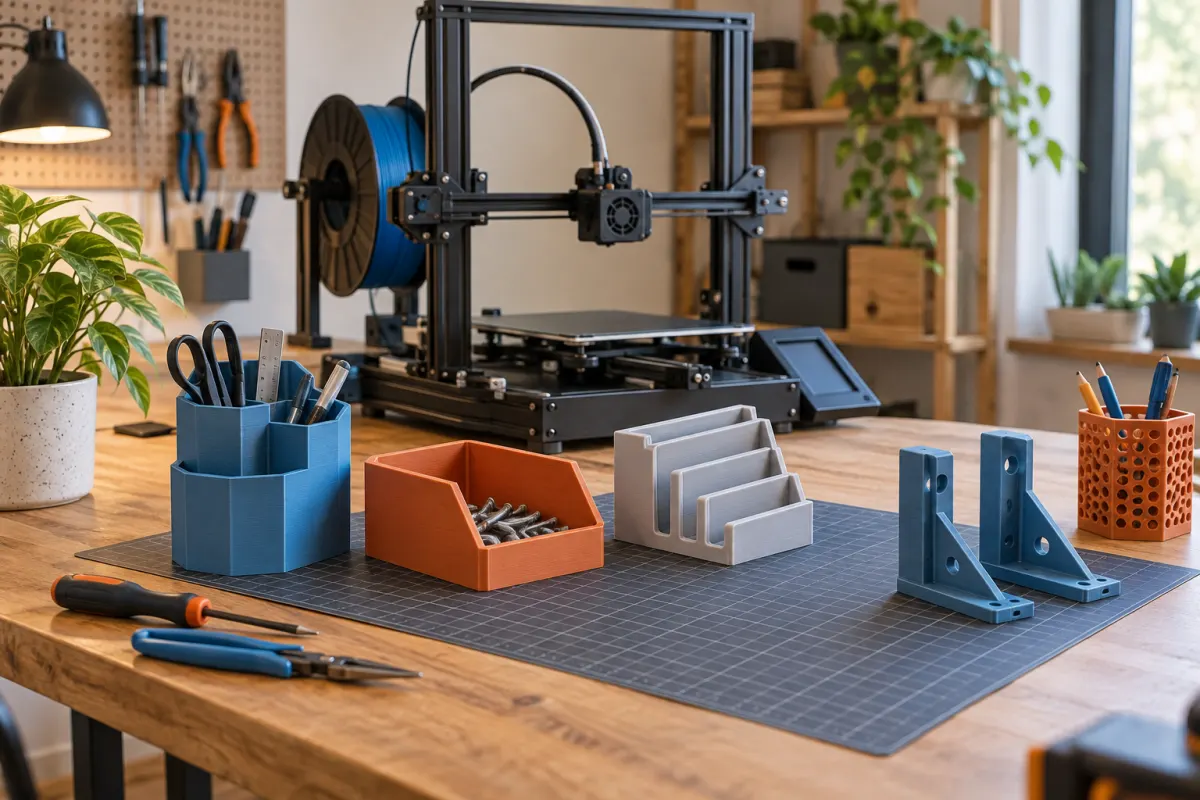
1. Prepare the printer and its space
Follow your model's setup instructions, remove shipping restraints, and complete its calibration routine. Give moving parts and the filament spool room to travel. The advertised build volume describes the printable space, not how much desk space the printer needs.
Choose a stable surface and a ventilated location. Filament printing can release particles and gases, including when using PLA. Follow the manufacturer's safeguards, keep children and pets away from hot or moving components, and do not treat an enclosure alone as a ventilation system.
Load the filament using the printer's instructions. Begin with a material that the manufacturer recommends for your machine. Our PLA and PETG comparison explains why PLA is a convenient first choice for many projects.
2. Choose a manageable first model
Pick something small with a broad, flat base and few overhangs: a simple tray or cable organizer is more useful for learning than a tall, intricate figurine. Check the model's license before redistributing or selling prints.
A model file describes geometry. It is not necessarily ready to run on your printer. STL is a common geometry format; a 3MF file may also contain a full project with settings. When opening someone else's 3MF, recheck the selected printer, nozzle, and material instead of assuming the project matches your machine.
For an early size check, use the model-fit calculator. It compares dimensions with a rectangular build volume; confirm the full job, supports, and brim in your slicer before printing.
3. Slice with the correct profile
A slicer turns the model into instructions for the printer. Select your exact printer and nozzle, choose the loaded filament, and use a standard quality profile. Put the flat base on the bed and keep the scale modest.
- Layer height changes the thickness of each layer and affects detail and printing time.
- Walls form the outside shell; infill adds structure inside.
- Supports hold up geometry that would otherwise be printed into empty space, but require removal.
- A brim adds a thin border around the first layer to increase contact with the bed.
For your first attempt, avoid tuning all of these. The default profile gives you a baseline you can return to when troubleshooting.
4. Check the preview before printing
Move through the slicer's layer preview. Confirm the object sits on the bed, fits within the build area, and does not begin sections in midair without support. Check the estimated filament use and printing time.
Export or send the job using your printer's supported workflow. Do not run a stranger's ready-sliced printer file just because the model looks right: machine-specific instructions may not suit your hardware.
5. Watch the first layer
The initial lines should join into a consistent surface. If the nozzle drags loose strands around, the print separates from the bed, or plastic collects around the nozzle, stop and investigate. Continuing a failing print wastes material and can make cleanup harder.
Use our first-layer checklist to work through profile selection, surface care, and calibration in order. Change one thing at a time so you know what helped.
6. Let it cool, then learn from it
Wait for the build plate to cool as the manufacturer directs. Remove the part using the recommended method for that surface. Do not force a sharp scraper toward your hand.
Look at the underside, walls, and any overhangs. Record the filament, selected profile, and the one change you want to try next. Repeatable results are more useful than a long list of unexplained settings. Once you have a reliable baseline, try a second project with a different shape.
A useful plan for your first three prints
Give each attempt one question to answer. This is a suggested learning sequence, not a printer benchmark:
- Can I complete the workflow? Print one small, flat-based object using the standard profile. Save the project and take a photo of the result.
- Can I repeat it? Print the same object again with the same settings. If it fails, investigate what changed before choosing a harder model.
- Can I make something that fits? Try a small organizer or a test section of a fitted part. Measure the space it needs to fit, and compare the result after cooling.
Download the print log (CSV) to record your printer, material, profile, result, and next change. A filename or photo reference in your notes makes later comparisons easier.
Before a longer job, enter the slicer's filament and time estimates in the 3D printing cost calculator. Use your own spool price; the calculator's examples are not market prices or measured printer performance.
Sources & further reading
- Prusa: first print with PrusaSlicer
- Prusa: PLA material guide
- NIOSH: 3D printing safety at work and at home
Manufacturer guidance can change. Check the instructions for your exact printer, build surface, and filament.