Work in order: check the profile, prepare the surface, verify calibration, then evaluate extrusion. Change one thing per attempt.
If your print is sliding around, lifting at the corners, or leaving loose strands on the bed, stop the job before it creates a larger mess. First-layer failures often have several plausible causes. A short, repeatable checklist is more useful than changing five settings at once.
1. Confirm the selected profile
Check that the slicer has the exact printer, nozzle size, material, and build plate selected. A profile carried over from a downloaded project can be wrong even when the model fits on the bed.
Return to the maker's standard material profile if you have made many changes. Note the original settings before changing them so that you can recover a known baseline. Confirm that the loaded filament matches the profile and that it can feed without tangles or excessive resistance.
2. Prepare and seat the build plate
Let the plate cool and clean it according to the surface manufacturer's instructions. Skin oils can interfere with adhesion; handle the plate by its edges after cleaning. Do not use acetone, abrasives, or a solvent simply because they worked on a different type of plate.
Check that a removable plate is seated correctly and that no debris is trapped underneath. Inspect the surface for damage. Adhesive is not a substitute for correctly preparing the surface, and some materials need a release layer rather than extra grip.
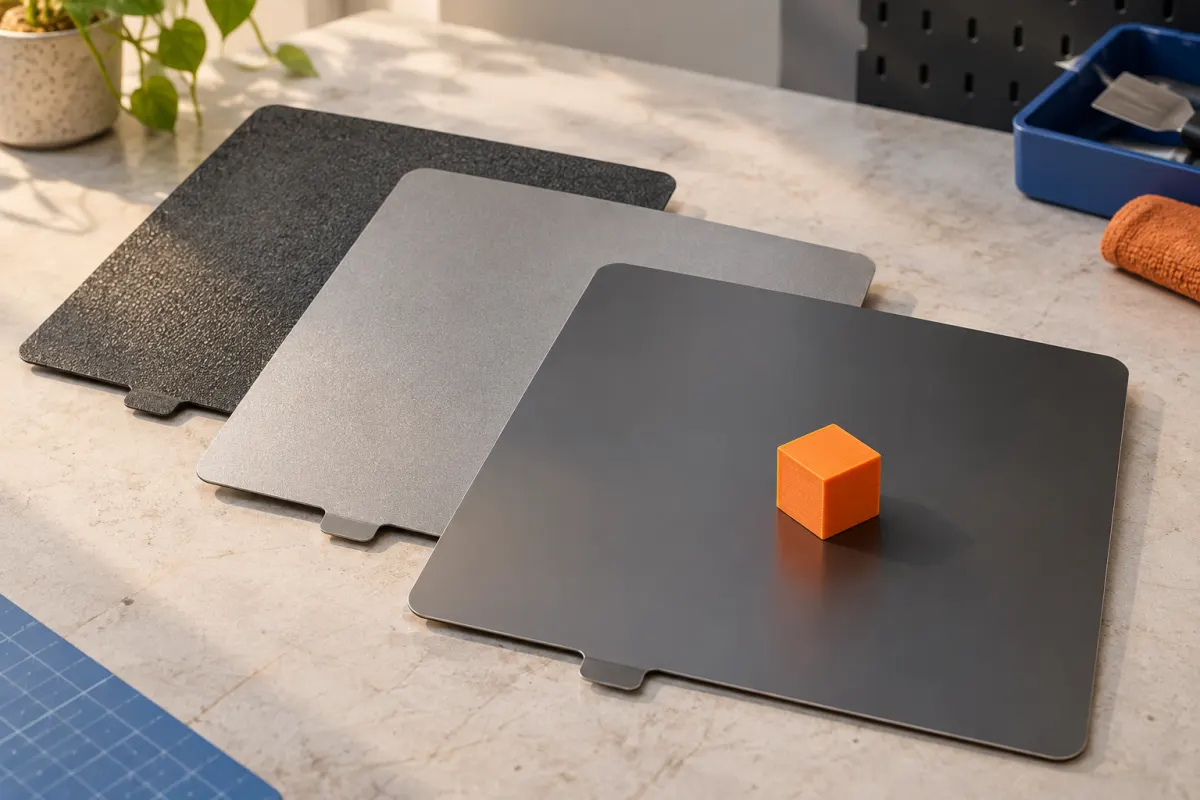
Using a Prusa Smooth PEI, Textured, or Satin sheet? Check PLA or PETG preparation in the plate-compatibility finder. For other plates, follow the exact surface maker's instructions.
3. Run the machine's calibration
Use the printer's recommended bed-leveling and first-layer setup procedure. Some machines set nozzle distance automatically, while others require model-specific adjustment. Avoid copying a Z-offset value from another printer.
Inspect the initial lines after calibration:
| What you see | What to investigate |
|---|---|
| Round, separated lines with gaps | The nozzle may be too far from the surface; also check extrusion. |
| Pronounced ridges or plastic pushed aside | The nozzle may be too close, or material flow may be excessive. |
| Good adhesion in one area, poor elsewhere | Plate seating, cleanliness, surface condition, or bed calibration. |
| A narrow part lifts at its edges | Contact area, surface preparation, and the recommended adhesion settings. |
These are diagnostic clues, not a guarantee of the cause. Follow the procedure for your machine before making manual adjustments.
4. Check the filament path and extrusion
Make sure the spool can turn, the filament is not tangled, and the printer has completed its loading routine. If extrusion is intermittent or absent, use the printer maker's troubleshooting procedure for the feeder and nozzle.
Do not compensate for a feed problem by pushing the nozzle closer to the plate. Likewise, do not raise temperatures beyond the filament and printer specifications in an attempt to force a fix. Let hot parts cool before touching or servicing them.
5. Consider the model's footprint
A tall object balanced on a small contact patch is harder to keep attached than a flat object with a broad base. Reorient the model if the design permits, or use a brim in the slicer to increase first-layer contact.
A brim can help a narrow base, but it will not fix a badly selected profile or a contaminated surface. If the part sticks initially and lifts much later, also examine material-specific warping guidance and the printing environment.
6. Repeat a short, controlled test
Use the same small test model, the same filament, and the same position on the plate. Record each change and its result. Once the first layer is repeatable, return to the original model.
If the problem persists with a clean, correctly seated surface and the manufacturer's baseline settings, consult support with a photo of the first layer and the exact printer, material, and plate details. That evidence is far more useful than “it won't stick.”
Record the failure before changing settings
A useful troubleshooting note answers four questions: where did the failure begin, when did it begin, what did the plastic look like, and what changed since the last successful print?
| Pattern | Next check |
|---|---|
| Only one downloaded project fails | Recheck its printer, material, plate, orientation, and first-layer preview. |
| Several models fail in the same plate area | Work through plate care, seating, and the machine's calibration procedure. |
| A previously working setup fails after a spool change | Confirm the new material profile and unobstructed feeding before altering nozzle distance. |
| The first layer finishes, but corners lift later | Record when lifting begins; investigate the model footprint and material's warping guidance. |
These are starting points, not diagnoses. Save one log row per attempt, including failed attempts, and attach a photo reference in the notes. Keep the successful settings as your baseline instead of overwriting them with every experiment.
If you are still learning the file-to-printer workflow, start with your first 3D print. For plate compatibility when changing materials, read PLA versus PETG: build surfaces. If the first layer holds but fine threads span gaps higher in a PETG print, switch to the PETG stringing workflow.
Sources & further reading
- Prusa: first-layer issues
- Prusa: first-layer calibration and examples
- Prusa: print surface preparation
Manufacturer guidance can change. Check the instructions for your exact printer, build surface, and filament.