Choose Buddy3D if you want a standalone camera integrated with Prusa Connect; choose Raspberry Pi Camera Module 3 only if you want to assemble and maintain a compatible host-based setup. Compare the full system, viewing position, and remote-access terms before comparing camera resolution.
The Raspberry Pi module is a camera board, not a complete alternative in one box. This guide compares published capabilities rather than tested image quality, and distinguishes viewing from printer control. A camera does not guarantee detection of a failed print or replace the printer's operating instructions.
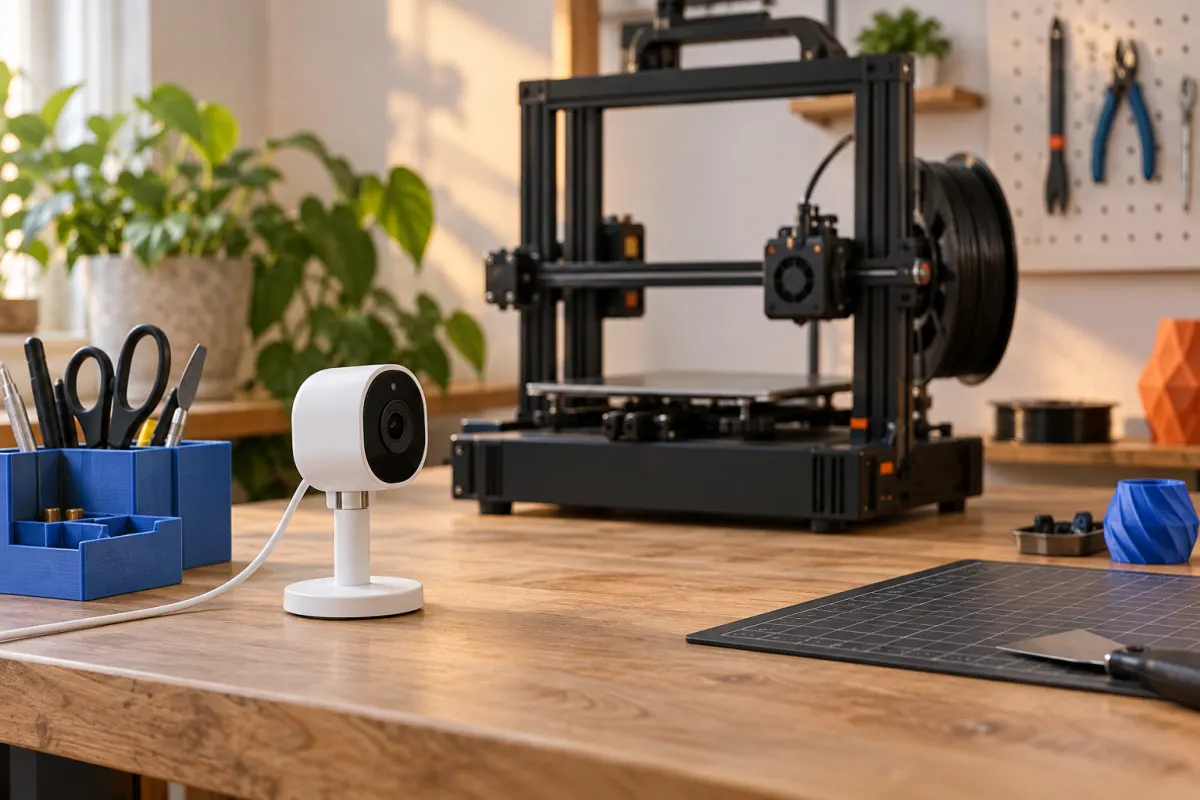
Compare complete systems first
| Candidate | Documented camera features | What the purchase must cover |
|---|---|---|
| Prusa Buddy3D Camera | 1080p; 2.4 GHz Wi-Fi; motorized positioning; infrared illumination | Power, placement, Prusa Connect/app setup, optional storage |
| Raspberry Pi Camera Module 3 Standard | Autofocus; 12 MP sensor; 75° diagonal field of view | Compatible Pi host, correct camera cable, power, mount, software |
| Raspberry Pi Camera Module 3 Wide | Autofocus; 120° diagonal field of view | Same host-based requirements, with a wider scene |
See the Buddy3D listing and Raspberry Pi product page. More sensor pixels do not prove a clearer view through an enclosure window or a higher-resolution stream in your chosen software.
Current delivered hardware prices are unverified. Compare complete baskets, including a host you may already own, instead of comparing a bare camera board with a finished network camera.
Choose the position before the lens
Decide what you need to observe: the whole bed, the nozzle area, or a presentable timelapse. Those goals may need different framing. Check that moving axes, a tall print, or the toolhead will not hide the critical area for most of the job.
The Camera Module 3 product brief lists a wider view and a closer minimum focus for the Wide model: 5 cm versus 10 cm for Standard. Those limits describe the module, not the final usable view behind every window or in every mount.
For a hypothetical camera placed close to a small printer, Wide may fit more of the bed in frame. If that also captures most of the room and makes the print tiny, moving a Standard camera farther away may serve the job better. Test the intended position with an existing camera before committing to a mount.
Read the current streaming terms carefully
Prusa’s April 8, 2026 streaming update distinguishes direct connections from relay traffic. Direct streaming can provide up to 1080p at 24 fps without a paid plan. When the network requires its TURN relay, the free path is SD at 12 fps; HD/FHD relay is part of paid upgrade options.
Local direct viewing, remote direct viewing, and remote relay viewing therefore should not be advertised as identical. Supported software and firmware updates are also part of the setup. Confirm the current offer and your actual network behavior before buying for a specific remote-image requirement.
For any platform, list separately whether live viewing, recording, timelapses, alerts, and storage require an account or payment. Do not infer that a camera with a memory-card slot includes a card, a cloud recording plan, or every possible recording mode.
Check the DIY camera stack, not only the connector
Camera Module 3 uses a camera interface on a supported Raspberry Pi host. Verify the exact cable and host connection, especially if reusing a board or a cable from an older setup. A matching-looking ribbon connector is not a complete software compatibility check.
OctoPrint’s camera-stack announcement documents Module 3 support through the newer libcamera-based stack. Do not assume every old OctoPi image or legacy webcam configuration supports it automatically. Follow the current setup guidance for the chosen image and camera.
Keep the project limited to camera monitoring unless your exact printer supports the intended control integration. A working video feed does not establish that OctoPrint can control every printer model. Budget time for updates, camera configuration, cable routing, and recovering the system after an interruption.
Make a deliberate remote-access choice
Identify where the video travels and who can access it. Choose the account and network arrangement you are comfortable maintaining, keep software updated, and aim the camera so it captures the print area rather than private room activity or readable documents.
For OctoPrint, the current remote-access directory lists options designed to avoid directly exposing the instance through port forwarding. The directory explicitly says inclusion is not endorsement. Review the individual provider's permissions, data handling, pricing, and maintenance before selecting one.
Do not expose an unprotected printer-control interface simply to see a camera away from home. If you only need a local view, begin with that smaller requirement. Treat saved timelapses and shared viewing links as content you deliberately choose to publish.
Who should buy, and who can use what they have?
Buy Buddy3D when its Prusa Connect workflow and documented viewing options fit your needs. Buy a Camera Module 3 when you already want a compatible Raspberry Pi project and accept the additional setup. Keep an existing built-in camera if it already shows the information you need.
A new camera is less useful if the problem is a blocked view or poor placement. Check the full operating envelope using our desk-space checklist; a mount or cable must not interfere with moving parts or maintenance access.
After setup, confirm framing at different bed positions and with a tall object in view. Test both local and intended remote access, including what happens when the connection fails. Buy additional storage or a subscription only when that test reveals a requirement you actually have.
Sources & further reading
- Prusa: Buddy3D Camera specifications
- Prusa: April 2026 camera streaming and storage plans
- Raspberry Pi: Camera Module 3 product specifications
- Raspberry Pi: Camera Module 3 product brief
- OctoPrint: camera stack with Camera Module 3 support
- OctoPrint: current remote-access plugin directory
Manufacturer guidance can change. Check the instructions for your exact printer, build surface, and filament.